
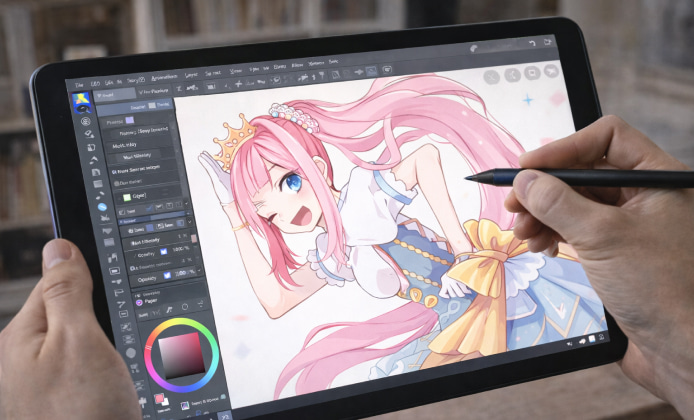
Tablet artists love the mix of portability and precision, and many start by looking for an ibis Paint X download for tablet when they want a flexible studio that fits in a backpack.
If you’re deciding whether ibis Paint X for tablet matches your workflow, focus on three pillars: brush control, layer handling, and export options that keep your files usable across devices.
Why ibis Paint X Feels Natural on a Tablet
The best tablet setups balance comfort and accuracy, and ibis Paint X on iPad often shines when you pair a responsive stylus with a steady canvas zoom routine.
- Keep your canvas at 25–50% zoom while sketching to judge proportions.
- Use higher zoom levels only for line cleanup and micro-details.
- Save custom brush groups for sketching, inking, coloring, and texture.
A simple habit that improves results fast: lock your layer order early, then paint with intentional layer names so revisions stay painless.
Getting Started ibis Paint X on iPad
Many users begin with an ibis Paint X app download for iPad and then immediately set up the interface for fewer mis-taps and faster tool switching. To use ibis Paint X on iPad comfortably, start by resizing the main palette and placing your most-used tools near your drawing hand, especially if you work in landscape mode.
- Create a default canvas preset for your usual sizes (social post, print, or comic page).
- Set a stabilizer level that matches your line style too high can feel sluggish.
- Build a “favorite brushes” list so you don’t lose momentum while drawing.
Recommended Baseline Settings
| Task | Suggested Approach | Why It Helps |
|---|---|---|
| Sketching | Lower opacity brush + quick gesture zoom | Keeps ideas fluid and readable |
| Inking | Moderate stabilization + consistent stroke speed | Cleaner lines without losing personality |
| Coloring | Use clipped layers for shading/highlights | Edits stay contained and fast |
| Export | Keep a master file + share a flattened copy | Preserves layers while optimizing delivery |
Using ibis Paint X on Amazon Fire Tablets
If you’re curious about ibis Paint X on Fire tablet devices, the key is planning for performance: keep layer counts reasonable and use smaller canvas sizes when you’re sketching on the go.
When you install ibis Paint X on Fire tablet, set up a lightweight template first one sketch layer, one ink layer, and a small color stack then expand your layers only after the composition is locked.
For people who want to download ibis Paint X for Amazon tablet models, it’s worth checking storage space before you begin, because time-lapse files and large canvases can grow quickly. In everyday use, ibis Paint X on Amazon tablet can be smoother if you periodically merge finished layers, reduce heavy blur effects, and close background apps during longer sessions.
Workflow Tips That Improve Results Quickly
- Create a “construction” layer for shapes and perspective guides, then hide it after inking.
- Use clipping layers for shading so you can change base colors without repainting.
- Name layers as you go (Sketch, Line, Flats, Shadows, Highlights) to avoid confusion later.
- Duplicate your file before major edits so you can compare versions easily.
Troubleshooting and Practical Fixes
If brushes feel laggy, reduce canvas resolution, lower the number of active layers, and avoid stacking multiple high-cost effects at once. If lines look shaky, increase stabilization slightly and slow your stroke speed; if lines feel too “floaty,” lower stabilization until it matches your hand motion. If exports look blurry, confirm your canvas is large enough for the platform you’re posting to, and avoid scaling up after finishing.
Quick Checklist Before You Start a New Illustration
- Pick a canvas preset based on final output (web, print, or mixed).
- Set your favorite brushes and place your most-used tools within thumb reach.
- Decide a layer plan (sketch → ink → flats → shade → effects).
- Save a master version and export a share-ready copy at the end.
Once you get comfortable, it becomes second nature to keep your setup consistent and your files organized, which is exactly what helps tablet art feel fast, clean, and enjoyable.


 Ibis Paint X on PC: A Practical Guide to Drawing, Layers, and Smooth Workflow
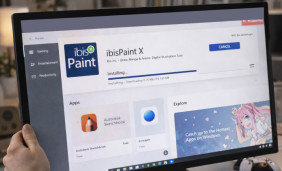 Ibis Paint X Install Guide: from First Download to Your First Brush Stroke
 Ibis Paint X APK: Emulation, Canvas Settings, and Export Tips
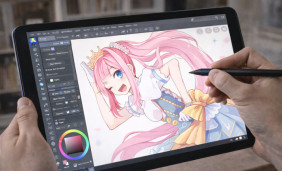 Ibis Paint X for Tablet Devices: Best Practices for Smooth Sketching and Inking
 What Is Ibis Paint X and How to Use?
 Best Apps Similar to Ibis Paint X